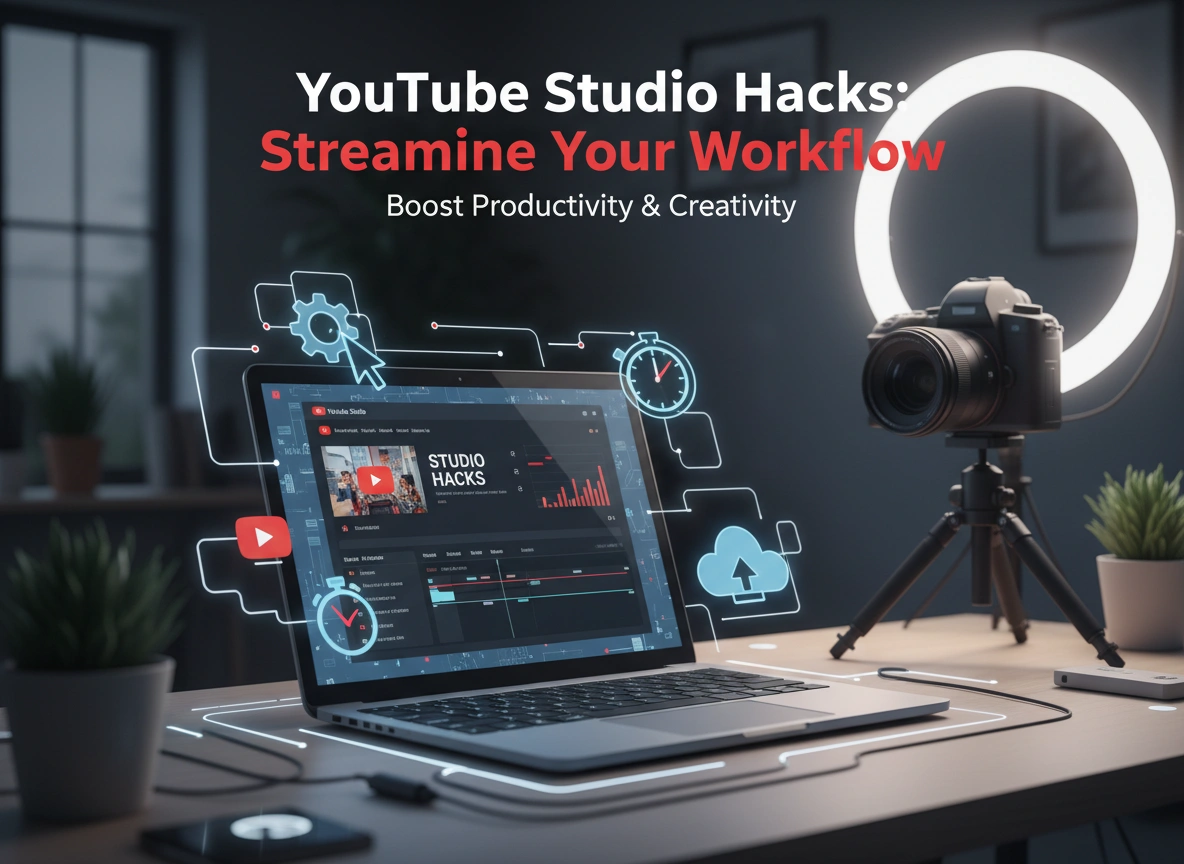
Managing a YouTube channel involves much more than just hitting record. From ideation and editing to analytics and audience engagement, the process can quickly become overwhelming. Fortunately, YouTube provides a powerful, free tool designed to simplify every aspect of your creative journey: YouTube Studio. While many creators use it for basic uploads and comment moderation, its full potential often remains untapped.
This guide will uncover powerful YouTube Studio hacks to help you streamline your content creation process. You will learn how to work smarter, not harder, by leveraging hidden features and optimizing your workflow. These tips are designed to save you time, provide deeper insights into your performance, and ultimately help you grow your channel more effectively.
Master the Dashboard for At-a-Glance Insights
Your YouTube Studio dashboard is more than just a welcome screen; it’s a command center for your entire channel. Customizing and understanding this space is the first step toward a more efficient workflow.
Customize Your Dashboard Cards
By default, the dashboard shows cards for latest video performance, channel analytics, recent subscribers, and news. However, you can tailor this view to prioritize the information that matters most to you. For example, if you are closely tracking a new series, you can keep the latest video performance card front and center. If community engagement is your priority, you might focus on the recent comments card. A quick glance at a well-organized dashboard can give you a daily snapshot of your channel’s health without needing to dive deep into analytics.
Monitor Real-time Performance
One of the most valuable features on the dashboard is the real-time activity card. This gives you a live look at your view count over the last 60 minutes and 48 hours. Watching this data after publishing a new video can provide immediate feedback on your title, thumbnail, and initial promotion efforts. Did views spike after you shared it on social media? This real-time information allows you to react and adapt your strategy on the fly.
Streamline Video Editing and Uploading
The process of getting a video from your computer to your audience can be time-consuming. YouTube Studio has several built-in features that can significantly speed things up.
Use Upload Defaults to Save Time
Do you find yourself typing the same description, tags, and settings for every video? The “Upload defaults” feature is a game-changer. You can find it under Settings > Upload defaults. Here, you can pre-fill information that rarely changes, such as:
- A basic description template: Include links to your social media, website, affiliate products, or a call-to-subscribe.
- Standard tags: Add channel-specific tags like your name, channel name, and primary content topics.
- Default visibility: Set videos to “Private” or “Unlisted” by default so you can review them before publishing.
- Advanced settings: Pre-select your video language, category, and comment settings.
Setting this up once can save you several minutes on every single upload, which adds up significantly over time.
Leverage the Built-in Video Editor
While not a replacement for professional editing software, YouTube’s built-in editor is perfect for quick fixes and simple adjustments after a video is already uploaded. This is incredibly useful for tasks that don’t warrant a full re-upload.
- Trim & Cut: Did you leave in a mistake at the beginning or end of your video? Use the trim tool to remove unwanted sections without affecting your view count or comments.
- Blur Tool: If you accidentally showed personal information or need to obscure a face, the blur tool is a lifesaver. You can apply a static or tracking blur to any object in your video.
- Add End Screens and Cards: Seamlessly add end screens and info cards directly within the editor. You can use templates to promote other videos, encourage subscriptions, and link to external sites.
- Audio Library: Add royalty-free music and sound effects from YouTube’s extensive Audio Library without worrying about copyright claims.
Dive Deep into Analytics for Smarter Content Strategy
Analytics are the bedrock of channel growth. YouTube Studio provides a treasure trove of data that, when interpreted correctly, can guide your entire content strategy.
Understand Your Audience Retention
The audience retention graph is arguably the most important metric for any video. It shows you exactly when viewers are dropping off.
- Look for Dips: A sharp dip in the first 30 seconds might indicate a weak intro. A dip in the middle could mean a particular segment was uninteresting.
- Identify Spikes: Did viewers re-watch a specific part of your video? This signals high interest. Consider creating a follow-up video that expands on that popular topic.
Use this data to refine your video structure, pacing, and storytelling for future content.
Analyze Traffic Sources
Knowing where your views come from is crucial for growth. In the “Reach” tab of your analytics, you’ll find the “Traffic source types” card. This tells you if viewers found you through YouTube search, browse features (like the homepage), suggested videos, or external sources.
If a lot of your traffic comes from “YouTube search,” it means your SEO is strong. You can double down on this by researching more keywords related to your top-performing videos. If “Suggested videos” is a primary source, it means YouTube’s algorithm is recommending your content alongside other popular videos. Analyze which videos are driving this traffic and create similar content.
Use the “Audience” Tab to Know Your Viewers
The “Audience” tab reveals demographic information about who is watching your content, including their age, gender, and geography. It also shows you what other channels and videos your audience enjoys. This information is gold for content planning. If you see your viewers are also watching another creator in a similar niche, you might consider a collaboration or creating content on topics they cover.
Enhance Community Management and Collaboration
Building a community is just as important as creating great videos. YouTube Studio provides tools to manage your audience and work with a team.
Filter and Respond to Comments Efficiently
As your channel grows, managing comments can become a full-time job. Use YouTube Studio’s comment filters to streamline the process. You can filter comments by:
- Response status: View comments you haven’t responded to yet.
- Contains questions: Quickly find and answer viewer questions.
- Subscriber status: Prioritize engaging with your loyal subscribers.
You can also set up comment moderation rules to automatically hold potentially inappropriate comments for review, keeping your community space positive and safe.
Grant Channel Permissions for Team Collaboration
If you work with a team (an editor, a manager, a thumbnail designer), you don’t need to share your Google account password. Instead, use the “Permissions” feature in Settings. You can invite others to access your YouTube Studio with specific roles:
- Manager: Can view all data, manage permissions, and edit everything.
- Editor: Can edit everything but cannot manage permissions.
- Viewer: Can see everything but cannot edit anything.
- Viewer (Limited): A viewer with no access to revenue data.
This allows for secure and efficient collaboration, letting team members handle their specific tasks without compromising your account’s security.
Final Thoughts: Integrate Studio into Your Workflow
YouTube Studio is more than a simple backend dashboard; it is a dynamic and powerful tool designed to support every step of your content creation journey. By implementing these hacks, you can transform your workflow from a series of disjointed tasks into a streamlined, data-driven process.
Start by dedicating time each week to explore one new feature. Set up your upload defaults, analyze the audience retention of your top three videos, or customize your dashboard for a better overview. Small, consistent changes in how you use YouTube Studio will lead to significant gains in efficiency and strategic clarity, freeing you up to focus on what you do best: creating amazing content for your audience.